The What's My Set app icon: half a barbell next to a question mark.

Press Kit

What's My Set

Simple, accessible set tracking

A set counter with rest timers and Tabata/EMOM interval timers for workouts. Strong accessibility support from day one. Designed for Apple Watch, iPhone, and iPad.

At a glance

What it does

Know your set

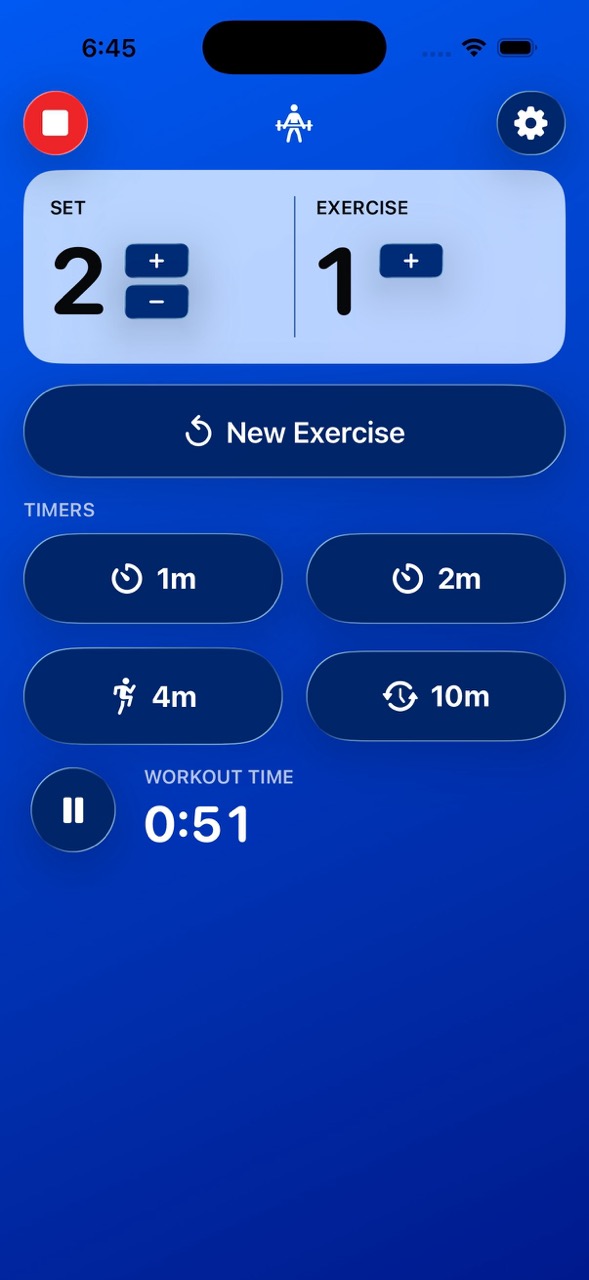
Set and exercise counts are displayed prominently for quick reference.

Time your rest

Multiple rest timers for different rest lengths. Big effort and short rest both covered.

Crush your intervals

Tabata interval timers with distinct work and rest phases. EMOM (every minute on the minute) interval timers.

Accessible by design

VoiceOver, Voice Control, Dynamic Type, audio cues, differentiate without color, haptic feedback, and more.

Track from your wrist

Set/exercise counts at a glance on your Apple Watch, with easy access to rest and interval timers.

The story

The Inspiration

I was really bad about losing track of when my rest periods ended when I was lifting weights. I often got distracted looking at something on my iPhone. (I work out at home. Please don't come for me.) Sure I could set a timer for that but I don’t want to deal with dismissing 16+ timers during a workout. And I also would lose track of what set I was on when my rest periods were over. The built-in workout app wasn’t helping with tracking that. I also couldn’t find anything on the App Store that met my needs for simplicity, usability, and accessibility. So I decided to write my own solution with accessibility being a priority from day one.
Fact sheet

The essentials

App name
What's My Set: Workout Timers
Developer
Chris WuIndie Developer
Release date
June 29, 2026Available to pre-order
Platforms
Apple Watch, iPhone, iPadwatchOS / iOS / iPadOS 26.0+ · also runs on Mac & Vision Pro
Category
Health & Fitness
Price
Free with In-App PurchasesPro version subscription pricing available on the App Store.
Age rating
4+
Languages
English
App icon by
Senaid Grbo
Privacy
No account, no trackingLogging done locally via Apple Health if logging is enabled.

Features

Feature details

Set and exercise tracking

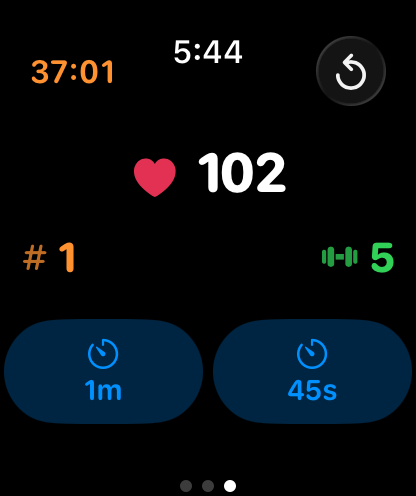
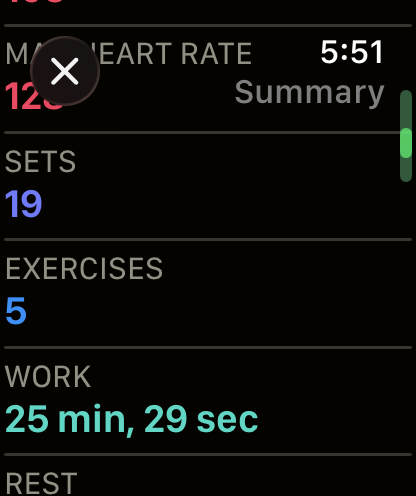
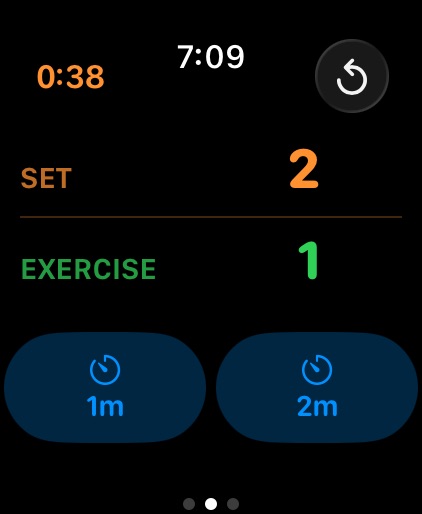
The set and exercise counts are front and center on your Apple Watch. You can do a quick glance of your wrist and know what set you're on, how many exercises you've done, how long you've been working out, and the time. The refresh button is to move on to another exercise and reset the set count. There's easy access to two timer buttons.

The main Apple Watch interface showing workout time, set count, exercise count, a new-exercise button, and two rest buttons.

Rest timers

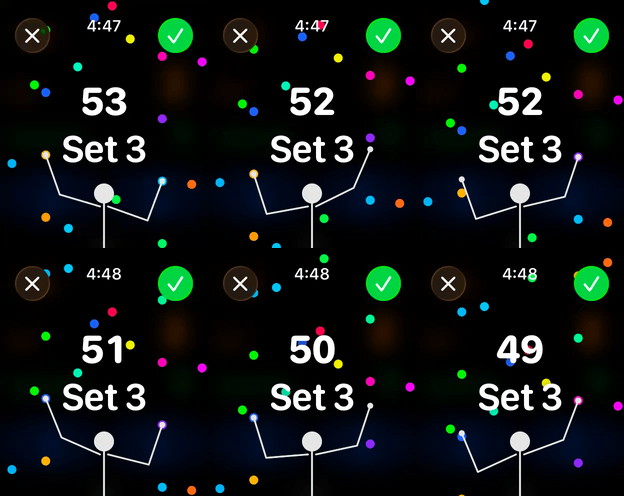
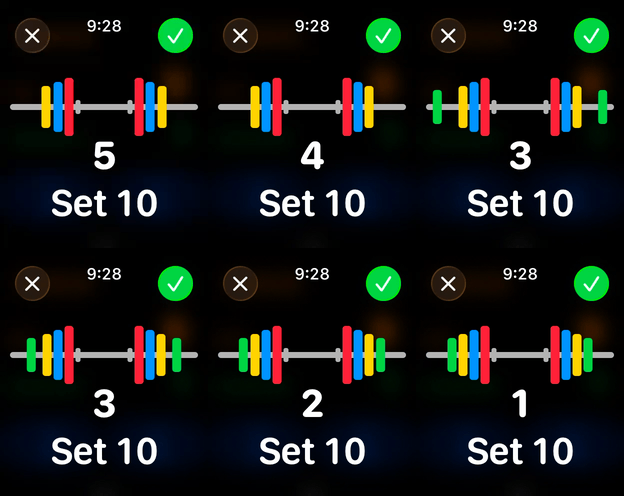
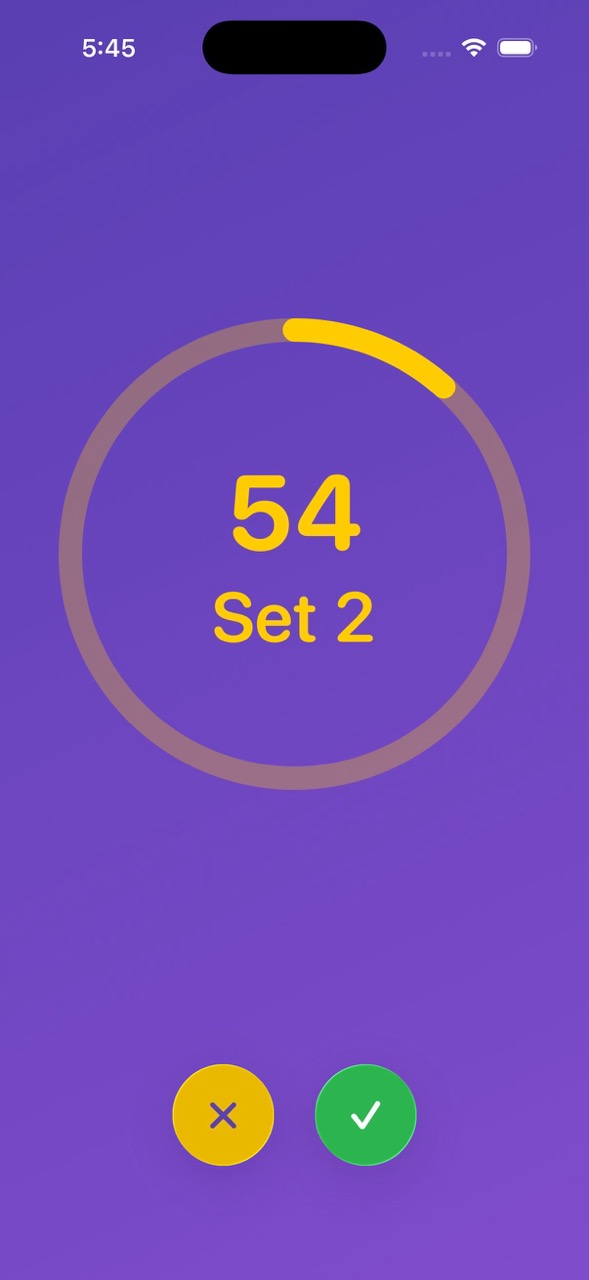
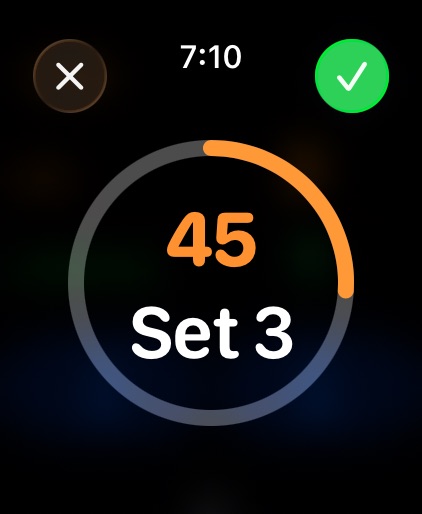
While a rest timer is running you also can always tell what set you're about to start (or what set you just finished if you want to configure it that way).

A ring countdown rest timer. The center shows the remaining time and 'Set 3', with cancel and submit buttons in the toolbar.

Tabata & EMOM intervals

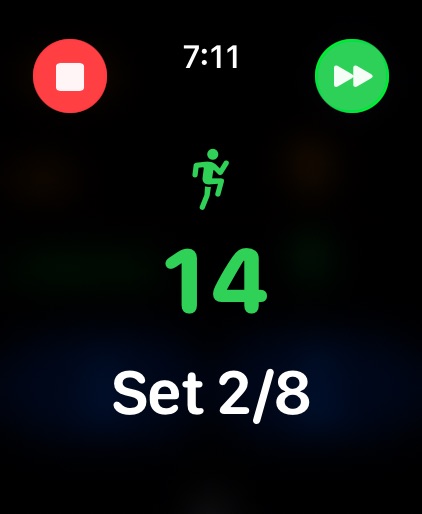
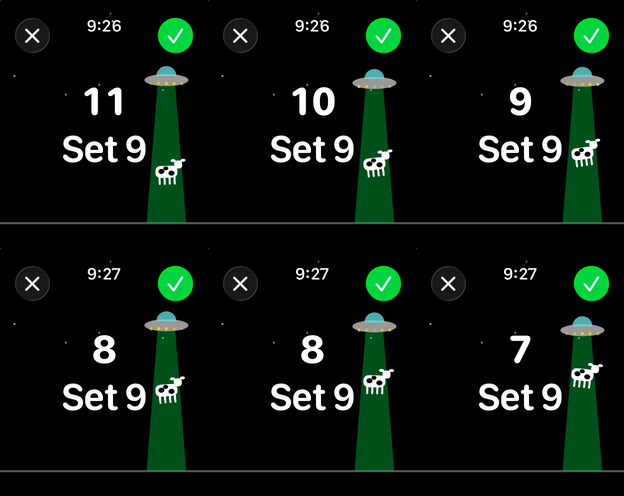
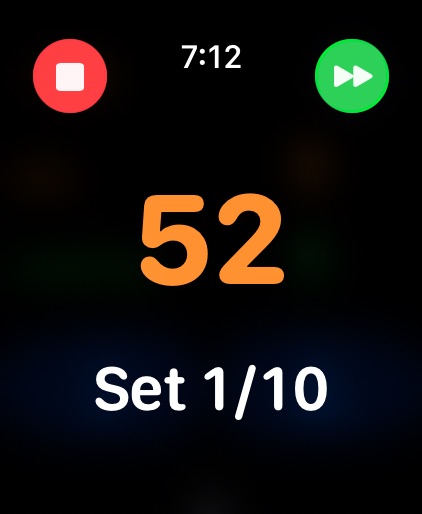
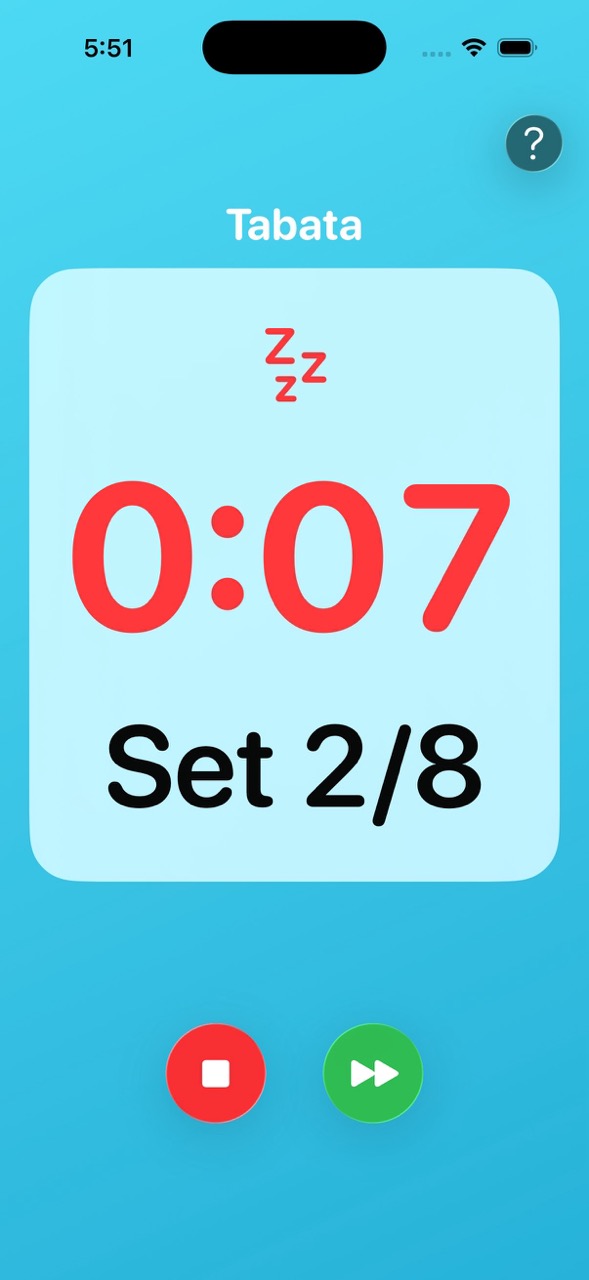
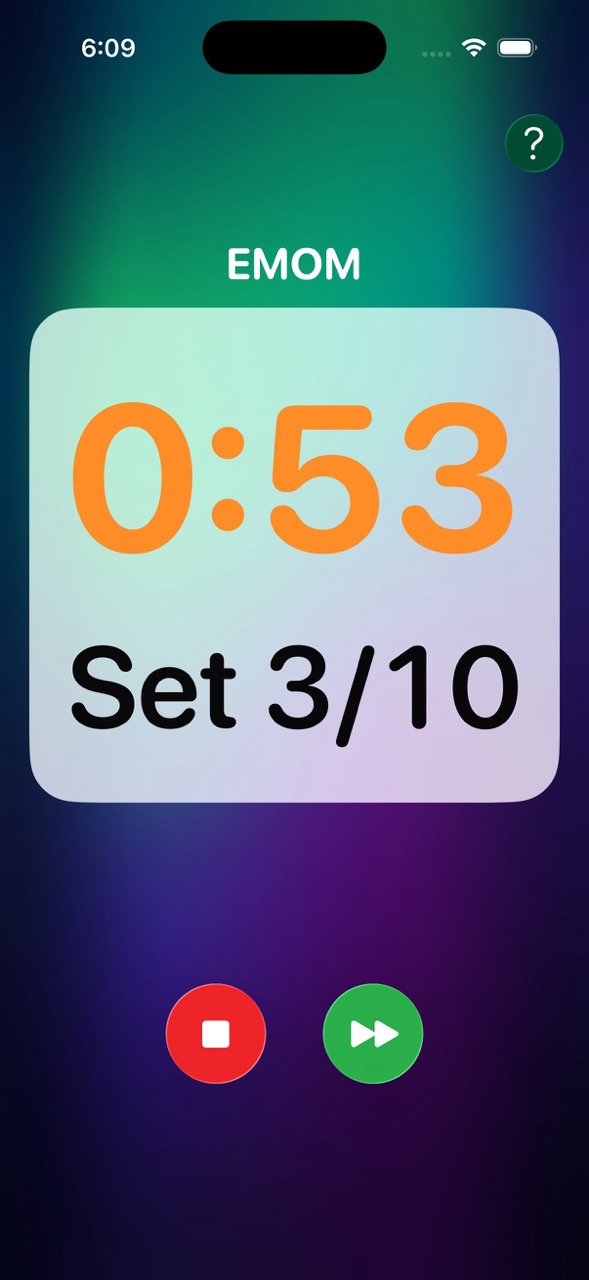
Tabata interval timers alternate between work and rest periods for a number of rounds and the app will show you how much time is left in each of them.

EMOM is "every minute on the minute" interval timing where you work and just rest as much as is left before the next round starts.

A Tabata timer showing 14 seconds left in the work phase of set 2 of 8, with a running-figure symbol indicating the work phase.

Over 70 themes

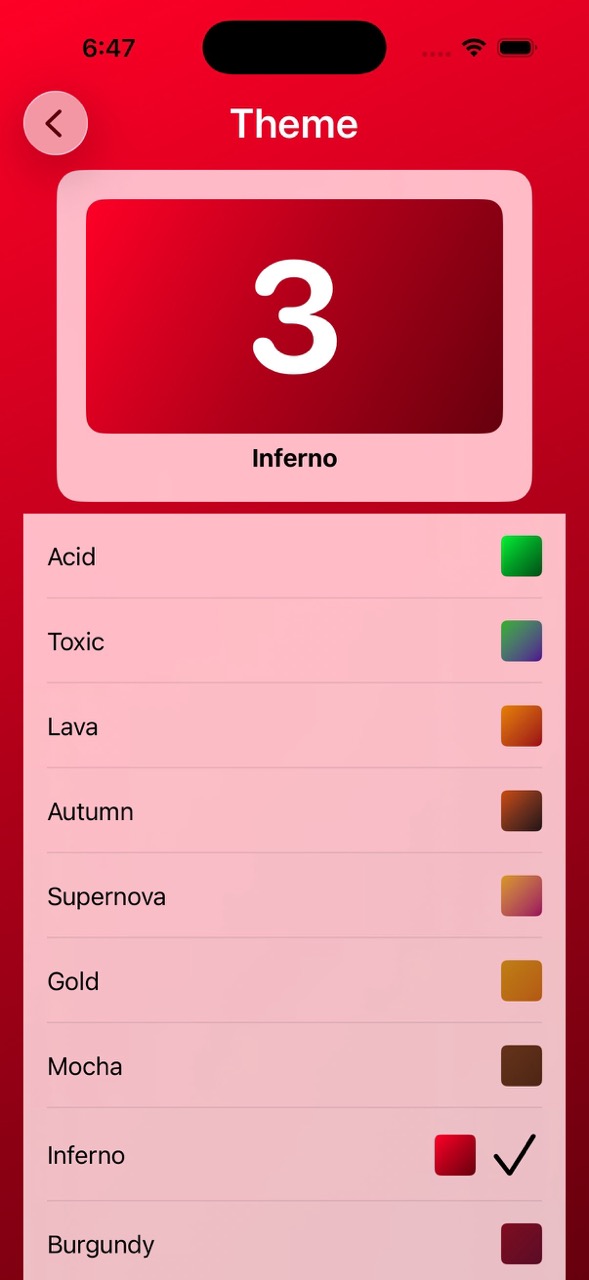
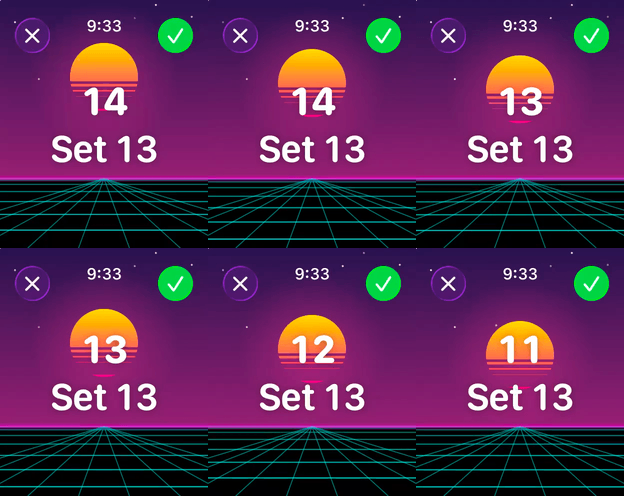
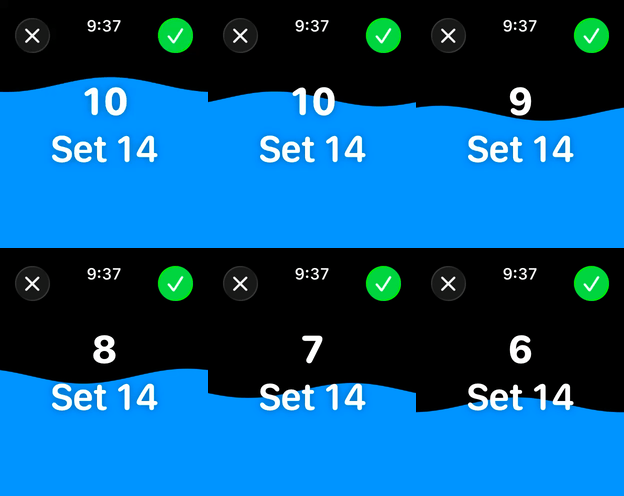
Useful AND fun. There's over 70 different themes ranging from as plain as possible to multiple vibrant colors.

The active workout view on iOS displayed in a vibrant color theme, showing set and exercise counts, rest timers, and the workout time.

Accessibility

Accessibility features

This is what I'm the most proud of. How many workout apps can say they have strong accessibility support? It's been a priority of mine since day one.

Audio Cues & Haptic Feedback

The app will give a lot of audio cues as to what's happening. From "Get ready", to announcing the set/exercise number, and warning beeps. Some or all of these can be disabled. And there's also haptics to let you know that your set is about to begin.

VoiceOver

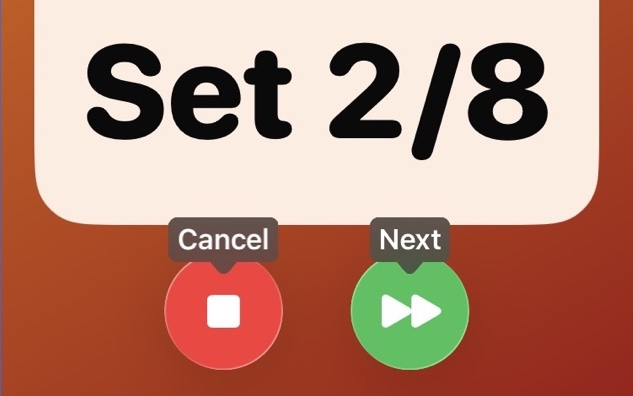
Full VoiceOver support with intelligent grouping, labeling, hints, etc.

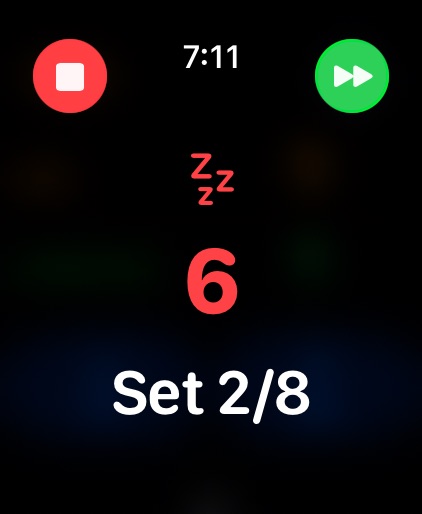
A red stop button labeled 'cancel' and a green fast forward button labeled 'next'.

Voice Control

You can use the app with just your voice.

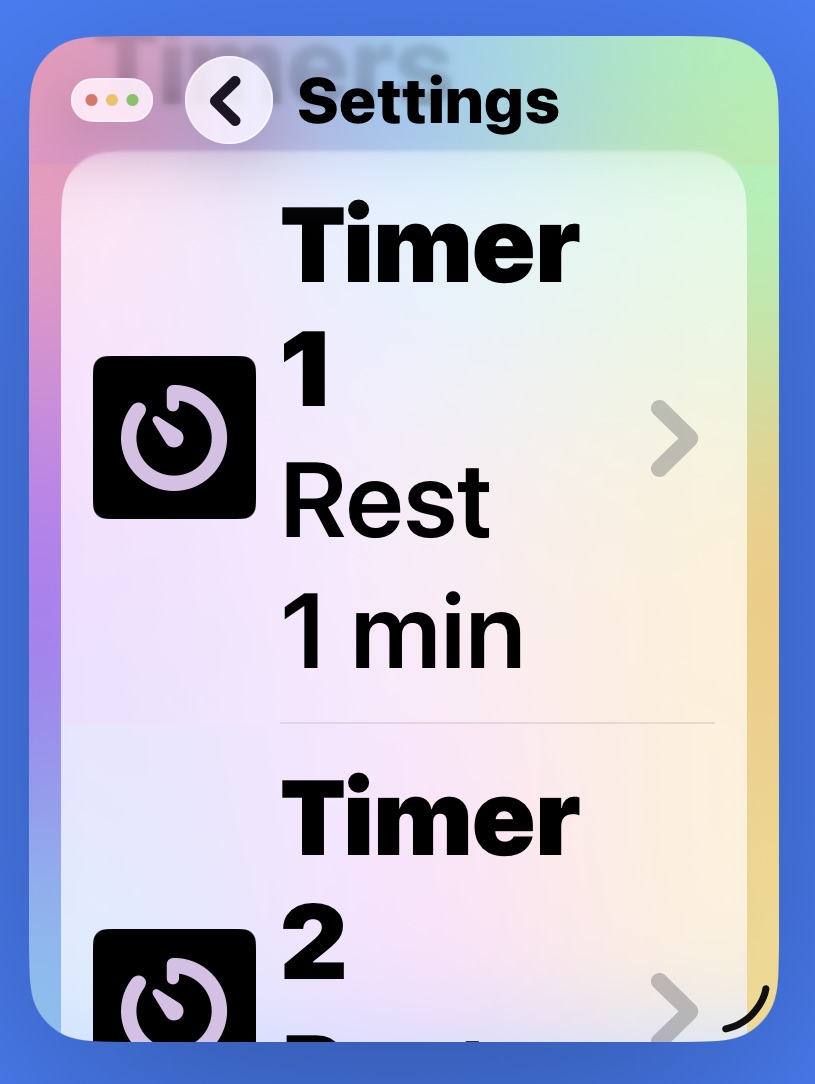
A small sized iPad window using the biggest text. Part of the timer setup screen is visible.

Dynamic Type

The largest text in the smallest of windows? No problem!

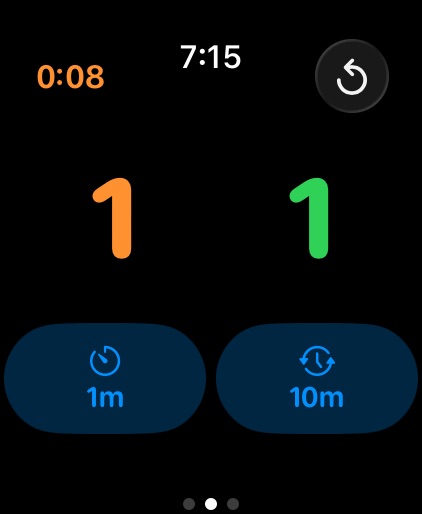
Two large counters are positioned above the rest counters. The set counter is orange and the exercise count is green.

Large Counters

I felt that I could do better with the most important info, the set and exercise counters, to go past the largest dynamic type sizes.

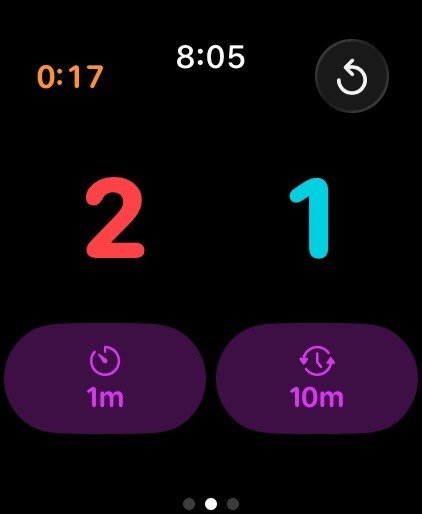
Two large counters are positioned above the rest counters. The set counter is red and the exercise count is cyan.

Adjustable Color

What if the default colors don't work for you? No problem, you can change them.

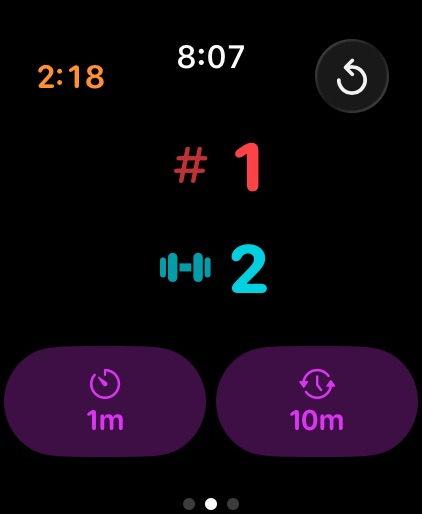
Two large counters are positioned vertically above the rest counters. The set counter is red with a hashtag symbol and the exercise count is cyan with a dumbbell symbol.

Differentiate Without Color

What if you want to differentiate without color? You can!

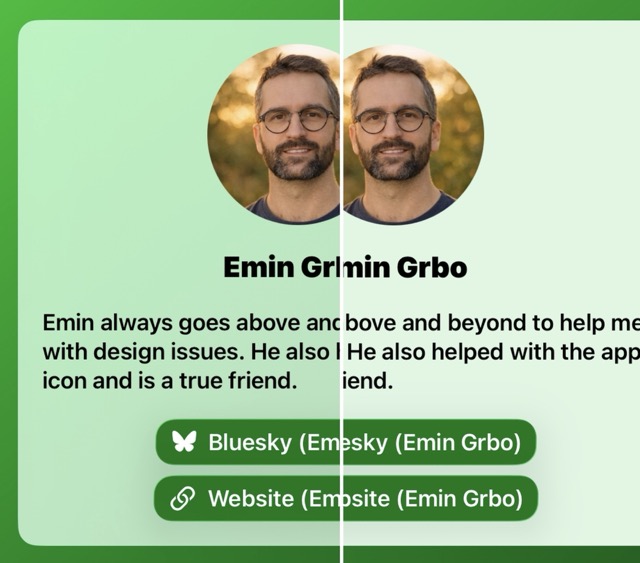
A split comparison of the same card shown with the standard translucent material on the left and the higher-contrast material used when Reduce Transparency is enabled on the right.

Reduce Transparency

When reduce transparency is on I use higher-contrast materials for easier readability.

Screenshots

Gallery

Press contact

Get in touch

Email

museumshuffle at gmail dot com

Socials

Blog: chriswu.com
Bluesky: @chriswu.com
Mastodon: @MuseumShuffle@mastodon.social

App Store

My Apps